Your Chromebook may sometimes fail to recognize external USB devices. When you connect a USB flash drive to your laptop, you may get a strange error that says ChromeOS could not recognize the device. You can try switching to a different port and check if you notice any improvements. If the error persists, here is some more information on how to fix it.
Fix: External Storage Device Could Not Be Recognized on ChromeOS
Check the Format
Keep in mind that ChromeOS only works with FAT32, exFAT, or EXT file systems. This means that your USB drive won’t mount if it’s formatted using NTFS. If this is the case, format it again using a ChromeOS-compatible format.
Check If Your USB Drive Is Faulty
Your USB drive itself could be faulty. Connect it to a different computer and check if it’s detected and fully functional. If the same USB drive works on other machines, this may indicate your Chromebook’s ports are faulty. On the other hand, if the device doesn’t work on different machines, you may need to get a new one.
Check for Updates
Make sure you’re running the latest ChromeOS version on your laptop. Suppose the OS itself is affected by some strange bugs that break the USB functionality. In that case, chances are Google may have already rolled out a hotfix.
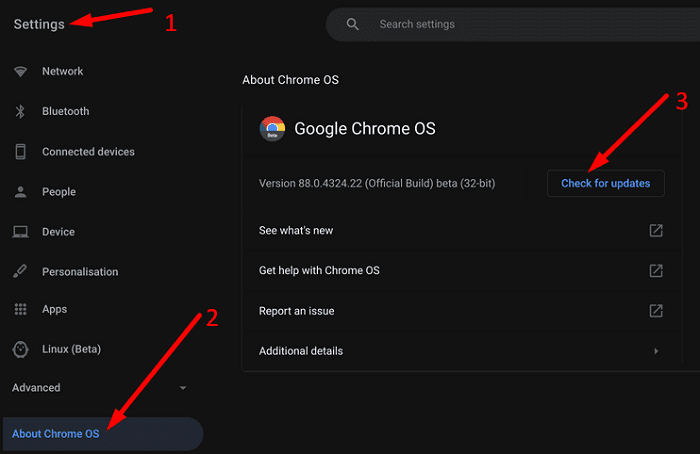
Connect your Chromebook to Wi-Fi and go to Settings. Then click on About Chrome OS, and hit the Check for updates button. Equally important, don’t forget to restart your laptop after installing the latest ChromeOS version.
Reset Chromebook Hardware
Try resetting your Chromebook hardware and check if this solution solves the problem for you.
- Turn off your device and wait for 30 seconds.
- Then press and hold the Refresh and Power keys simultaneously.
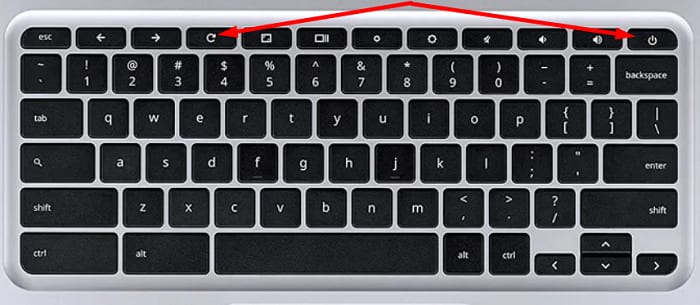
- Release the Refresh key when your laptop starts up.
- Boot up your machine and check if it recognizes your USB device.
Conclusion
If your Chromebook doesn’t recognize your USB devices, make sure you’re using the correct format. Additionally, check if your USB drive works on other machines. Then update your laptop to the latest ChromeOS version. If the issue persists, reset your Chromebook hardware.
Was this article helpful?
That’s Great!
Thank you for your feedback
Sorry! We couldn't be helpful
Thank you for your feedback
Feedback sent
We appreciate your effort and will try to fix the article