Clearing the cached data of your internet browser will allow the browser to perform better as well as protect your information.
Below are the steps to removing cached data from your browser. You will find two sets of instructions for two different browsers (Google Chrome and Microsoft Edge), please make sure you follow the right set for your browser.
Google Chrome
Step 1 – First navigate to the settings page, this can be done by clicking the three dots at the top right, then selecting settings.
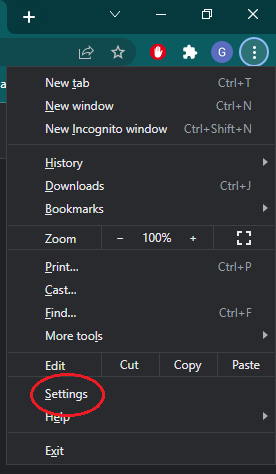
Step 2 – Select the Security and privacy tab on the left.
Step 3 – Click the “Clear browsing data” option on the main list. Then tick the “Cookies and other site data” and “Cached Images and files” boxes.

Step 4 – Change the time range from the drop-down menu to “All time” and then click “Clear data”. This will remove ALL cached data that the Browser will have saved.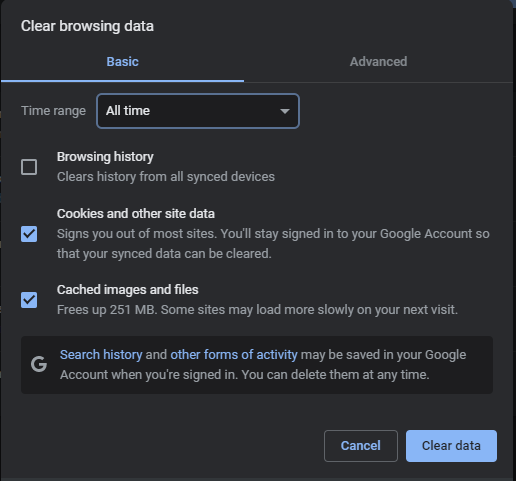
Microsoft Edge
Step 1 – First navigate to the settings page, this can be done by clicking the three dots at the top right, then selecting settings.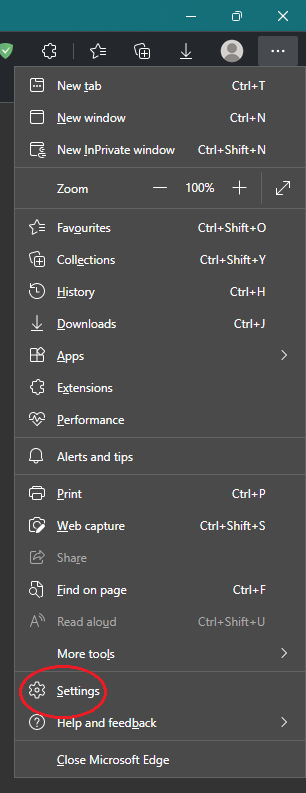
Step 2 – Select the “Privacy, search, and services” tab on the left.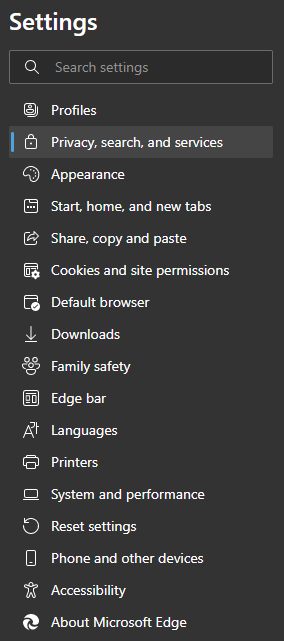
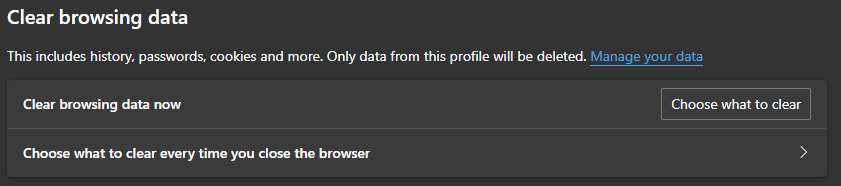
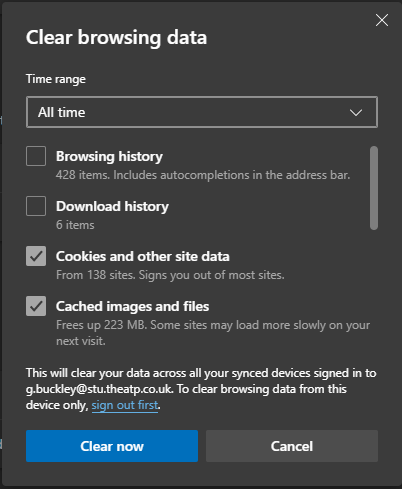
Step 3 – Click “Choose what to clear” under the “Clear browsing data now” option. Then tick the “Cookies and other site data” and “Cached Images and files” boxes.
Step 4 – Change the time range from the drop-down menu to “All time” and then click “Clear now”. This will remove ALL cached data that the Browser will have saved.
Was this article helpful?
That’s Great!
Thank you for your feedback
Sorry! We couldn't be helpful
Thank you for your feedback
Feedback sent
We appreciate your effort and will try to fix the article