- Enabling cached mode will allow you to store emails offline. This can be useful when trying to find information with no internet connection.
- Disabling cached mode will make it easier for you to search through emails, as well as preventing a corrupt cache file from having any effect.
Follow the steps below to enable or disable cached mode.
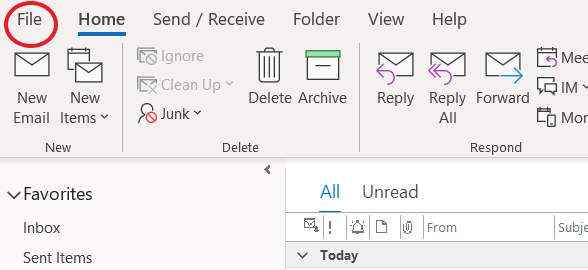
Step 1 – On the Outlook app, navigate to File.
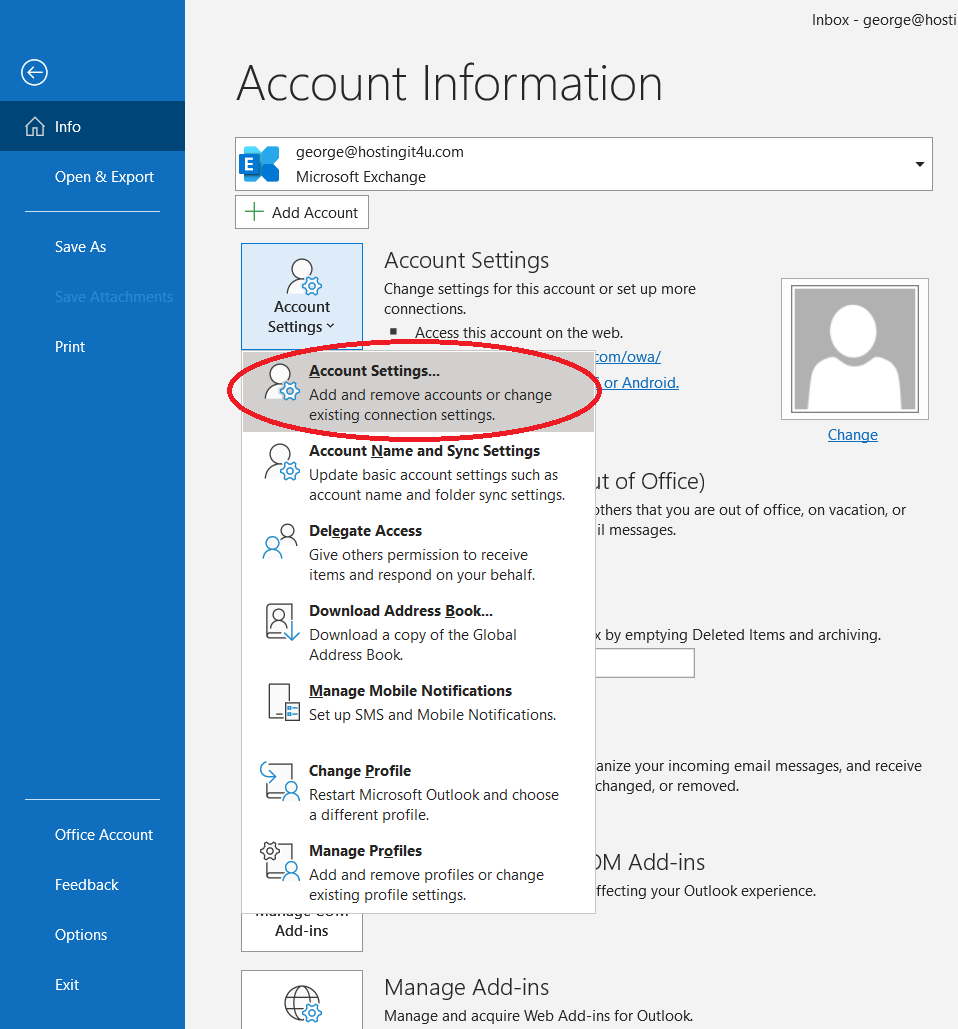
Step 2 – Select the “Account Settings” drop-down list and choose the first option.
Step 3 – Select your email address on the list then click on “Change…”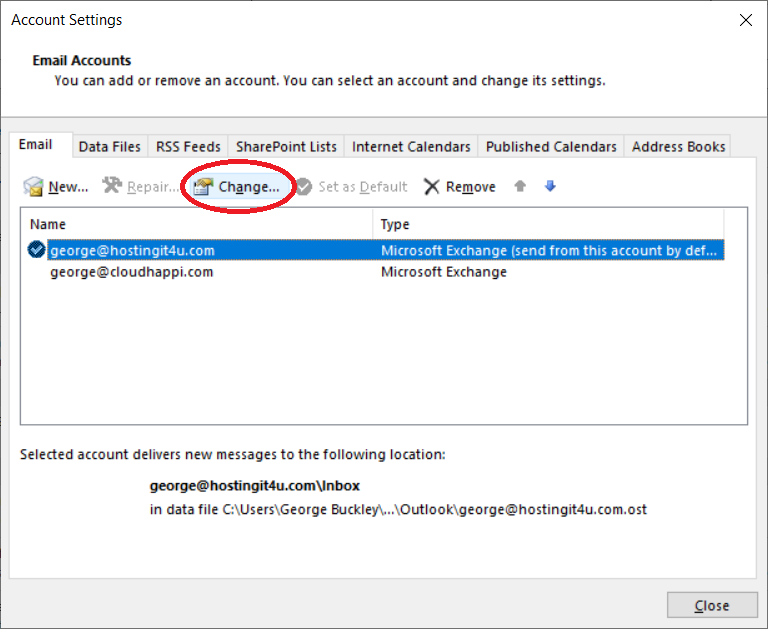
Step 4 – Depending on what has been requested, tick the box to enable cached mode, or untick the box to disable cached mode. (If enable, recommended to choose “All” on the slider labelled “Download email from the past”)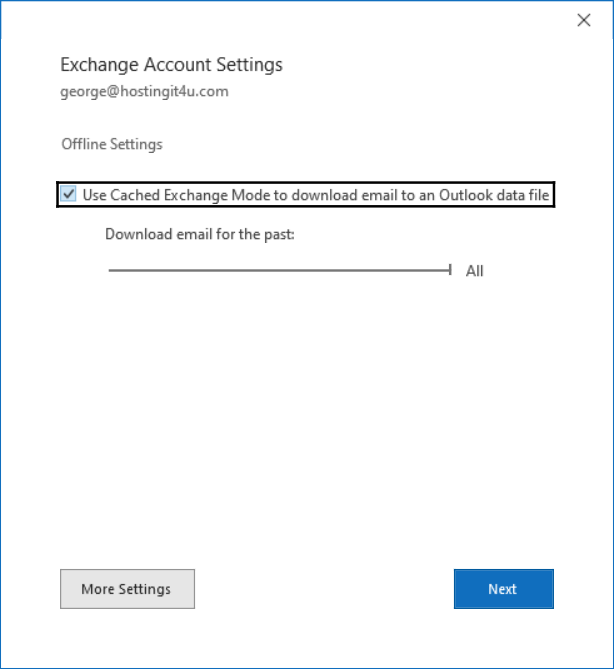
Was this article helpful?
That’s Great!
Thank you for your feedback
Sorry! We couldn't be helpful
Thank you for your feedback
Feedback sent
We appreciate your effort and will try to fix the article