After a 365 migration, Apple iOS devices may not recognise that a domain has been moved and attempt to sign you into the old Microsoft 365 tenancy.
You can tell if this is affecting you because after typing in the correct username (email address), it will change to user@OldTenancy.onmicrosoft.com, preventing you from signing in to the migrated account.
These steps can also be followed on Android devices if you're receiving a similar logon issue. The difference being you must download the apps from your native app store, e.g. Play Store.
Guide to fix:
- Delete (uninstall) any apps that you are unable to sign into (Outlook, Teams, etc) from your phone.
- Download the Microsoft Edge browser from the Apple app store. You can find it here: Microsoft Edge (iOS) / Microsoft Edge (Play Store)
Note: you do not have to keep/use Edge for browsing on your phone - we're just putting on to access the special "Reset all accounts" function in the next steps. - Open the Edge app and Browse to the following URL:
edge://signin-internals - Scroll down, if necessary, and tap the button that says "RemoveAllAccounts":
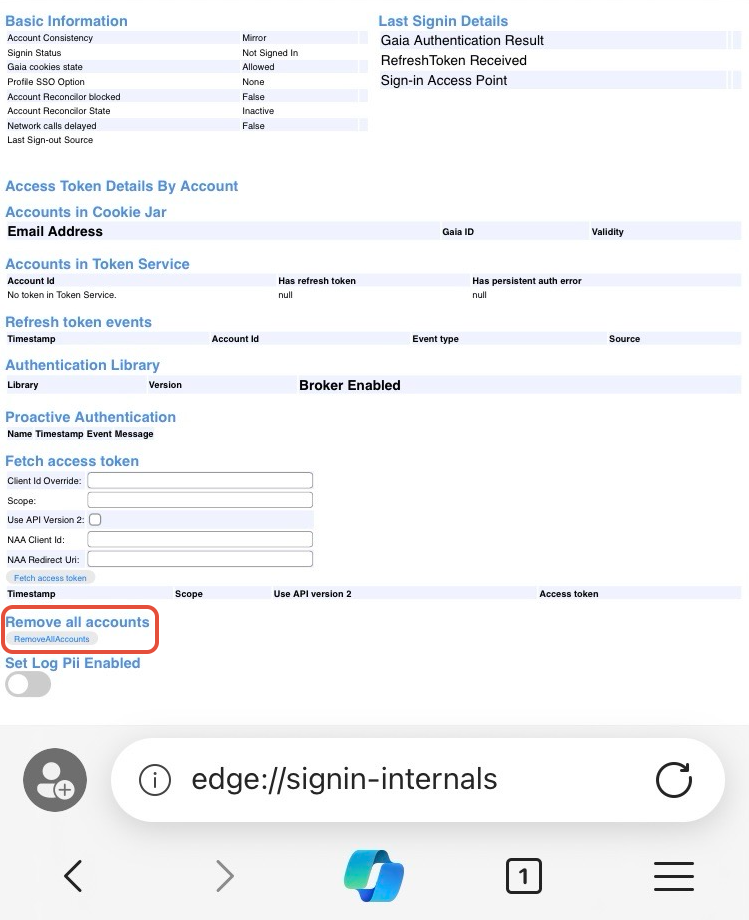
- You will see a little red popup saying that it removed accounts. You can close Edge.
- Re-install the apps you want to sign in to (Outlook, Teams, etc). You should now be able to sign in.
- If you wish, you can now delete Edge from your device.
Was this article helpful?
That’s Great!
Thank you for your feedback
Sorry! We couldn't be helpful
Thank you for your feedback
Feedback sent
We appreciate your effort and will try to fix the article