Source: https://support.microsoft.com/en-us/outlook/sharing/open-and-use-a-shared-mailbox-in-outlook
Wherever the guide mentions "shared mailbox", this also means mailbox that you have been given permission to access.
For example, you may have a been given access to another user's mailbox while they are on annual leave. It isn't necessarily a mailbox shared between users.
Add the shared mailbox so it displays under your primary mailbox
If you want to monitor the email from your primary mailbox and the shared mailbox at the same time, use this method. After you complete this task, the shared mailbox and its folders are displayed in the left navigation pane each time you open Outlook on the web.
- Sign in to your account in Outlook on the web.
- For Exchange Online mailboxes, right-click Folders in the left navigation pane, and then choose Add shared folder or mailbox. For Exchange on-premises mailboxes, right-click the name of your primary mailbox (such as Molly Dempsey) in the left navigation pane, and then choose Add shared folder or mailbox.
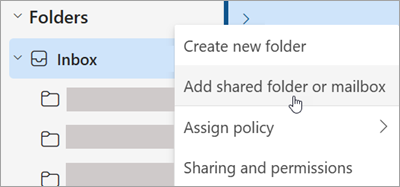
- In the Add shared folder dialog box, type the name of the shared mailbox you are a member of, such as info@contoso.com.
The shared mailbox displays in your Folder list in Outlook on the web. You can expand or collapse the shared mailbox folders as you can with your primary mailbox. You also can remove the shared mailbox from your Folder list. To remove it, right-click the shared mailbox, and then select Remove shared folder.
Send email from the shared mailbox
Choose New mail above the folder list. A new message form opens in the reading pane.
At the top of the message, choose
 > Show From.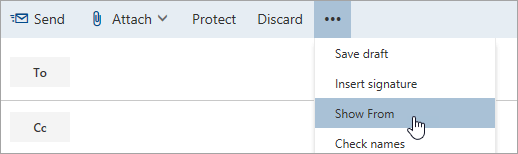
This option shows you that the people who receive the email message will see it comes from the shared mailbox and not from your own email account.The first time you use the shared mailbox, you need to add the address to the options available in the From drop-down list:
- Right-click the From address and choose Remove.
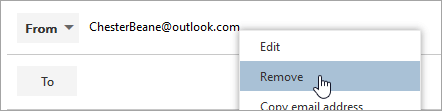
- Type the shared address. The next time you reply from the shared mailbox, its address will appear as an option in the From drop-down list.
- Right-click the From address and choose Remove.
To add recipients, type the name of anyone who is in your contacts folder or organization's address list, or type the email address in the To or Cc box. The first time you enter a person's name, Outlook on the web searches for that person's address. In the future, the name is cached so it resolves quickly.
Type a subject.
Type the message you want to send.
When your message is ready to go, select Send.
Was this article helpful?
That’s Great!
Thank you for your feedback
Sorry! We couldn't be helpful
Thank you for your feedback
Feedback sent
We appreciate your effort and will try to fix the article