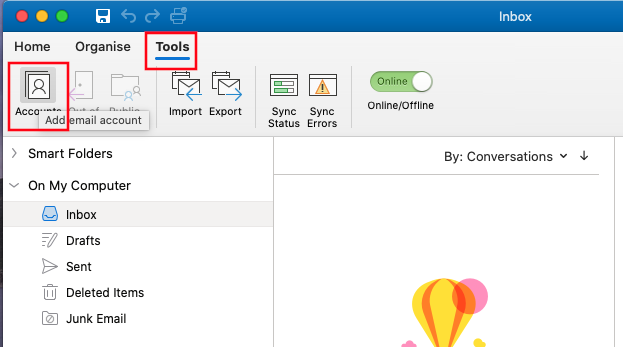
Open Outlook 365 for Mac. From the top menu, click Tools, then Accounts from the drop-down menu
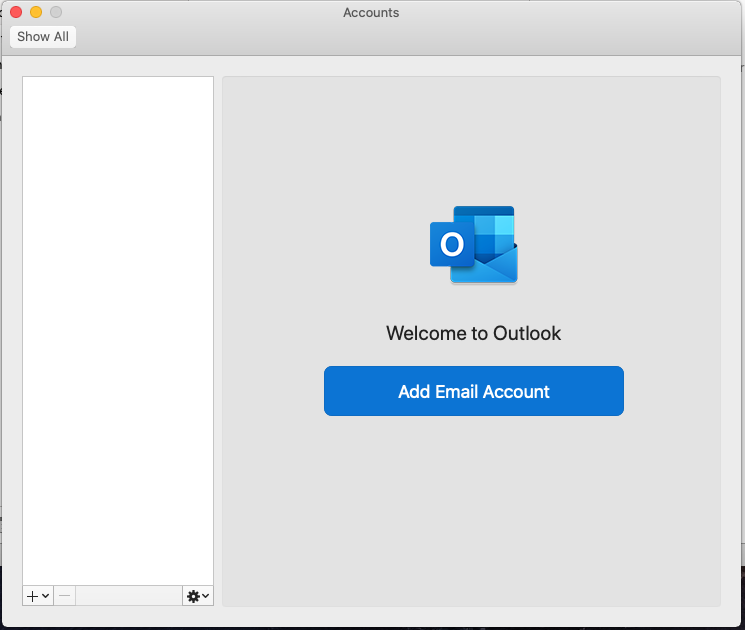
The Account window will open (see below). If this is the first account to be added to Outlook, click Add Email Account.
If another account already exists in Outlook, please click the small + sign at the bottom left.
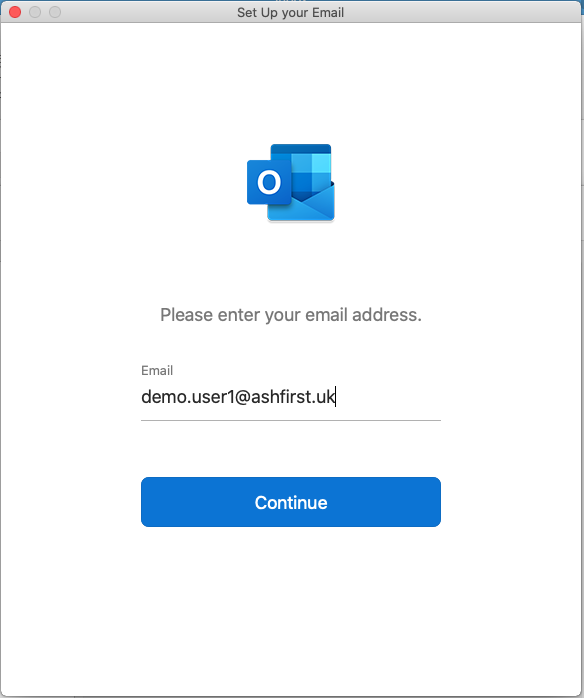
Enter the email address in the following dialog and click Continue:
A box will drop down and you will be asked to enter your account information. In order for your account to set up automatically, you must have the autodiscover records added to your DNS settings.
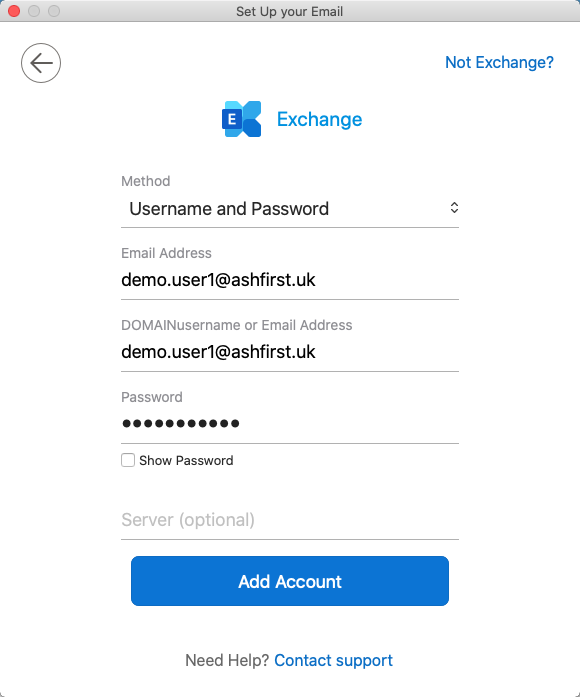
Leave Method as the default - Username and Password. Enter the mailbox address in the Email Address field and the same in the DOMAINusername or Email Address field. Enter the account password created when adding the user in Cloud.Market.
Press the Add Account button.
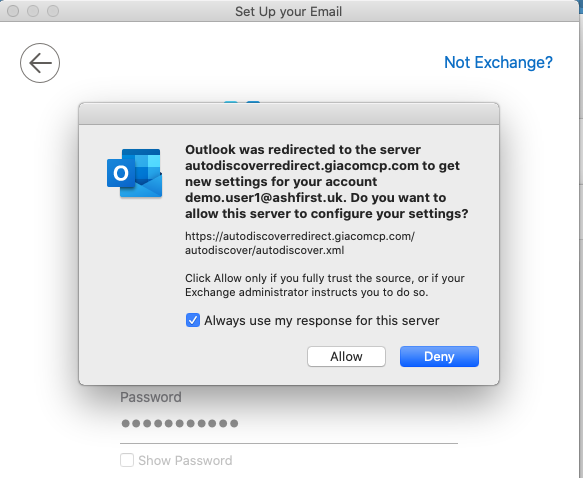
After a few seconds, you should be presented with the alert as above. Please tick the Always use my response for this server, and press the Allow button.
After a short while, your account will authenticate and you will return to the Account screen which can be closed by clicking the Close button in the top left. You'll then see any mail on the server begin to sync with this installation of Outlook - this may take a few minutes to complete, depending on the number of messages on the server.
Was this article helpful?
That’s Great!
Thank you for your feedback
Sorry! We couldn't be helpful
Thank you for your feedback
Feedback sent
We appreciate your effort and will try to fix the article