In the event of an email migration to Office 365, possibly from Microsoft Exchange, you may need to follow this guide to help get you setup again.
To access your emails, please navigate to office.com and login. Click the Outlook symbol on the left-hand side bar, similar to the desktop icon.
If you prefer to use the desktop version of Outlook, this is temporary until you can complete the steps below…
For anybody wishing to get the desktop Outlook app up to date, please follow these steps:
First off, you will need to save a backup of your inbox/folders:
Step 1 – On the desktop app, click File at the top left, then select the “Open & Export” tab.
Step 2 – Click the “Import/Export” button. Next, follow this route;
2a. “Export to a file”
2b. “Outlook Data File (.pst)”
2c. Select your email address (top selection and tick “include subfolders”)
2d. Click “Browse…” to select a memorable place to store the backup file and to name the file (Choose “Do not export duplicate items”)
2e. Click “Finish”
2f. Click “Okay” (You can ignore the option to enter a password, but it is personal choice).
Now you need to remove the email account to add it back again after – this will connect your outlook to the new system.
Step 3 – Firstly make sure Outlook is closed and then open the Control Panel. This can be done from the search icon on your taskbar at the bottom of your screen.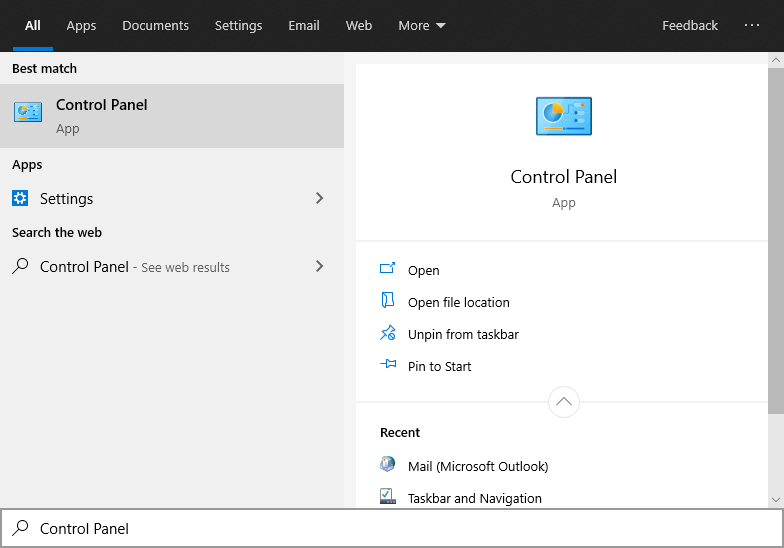
Step 4 - Now in the search bar on the Control Panel, search “mail”. It should return the option: “Mail (Microsoft Outlook)”. Click this.
Step 5 - Now on the new window that appears, you need to click “Show Profiles…”. This should bring up a list of email profiles that you use. Usually, this will only be one.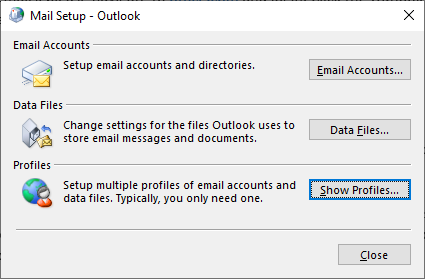
Step 6 - Remove the profile listed. Click yes.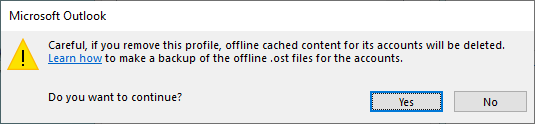
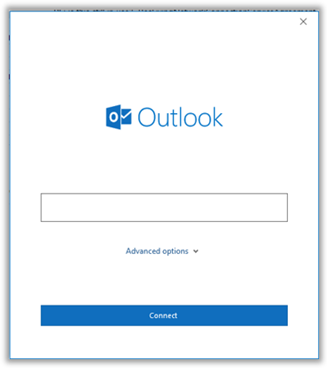
Step 7 – Now open outlook and continue with the login prompts that it will provide you with. Your email address and password should be the same as before.
Was this article helpful?
That’s Great!
Thank you for your feedback
Sorry! We couldn't be helpful
Thank you for your feedback
Feedback sent
We appreciate your effort and will try to fix the article