This guide will show you how to add in a shared calendar to your chosen Outlook platform
Please find your chosen platform before continuing.
Outlook for Desktop
- Navigate to the calendar tab and click “Open Calendar” on the top navigation bar.
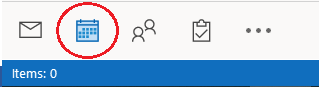
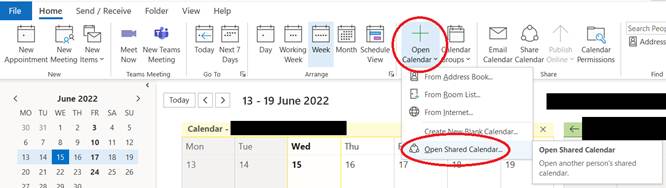
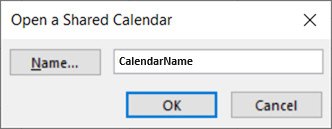
- Select “Open Shared Calendar…”. You can either type in the name of calendar or you can click on the “Name…” button and find the calendar through the address list (double click the email to select).
Outlook for mobile
- Select the calendar view tab on the bottom navigation pane
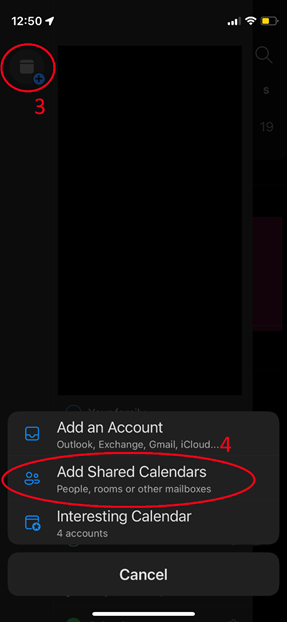
- Select the calendars button in the top left
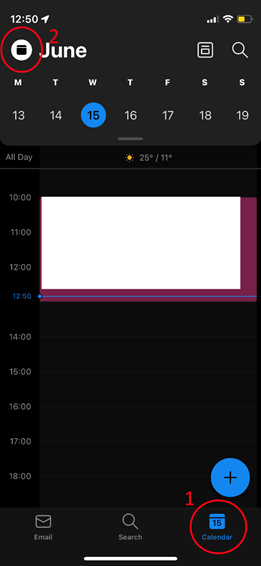
- Select the add calendar button in the top left
- Select the “Add Shared Calendars” button
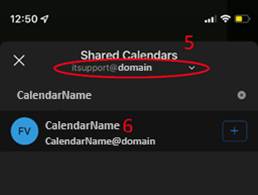
- Make sure the Shared calendar tab states your domain
- Type in the calendar name and select it from the drop-down list.
Outlook for the web
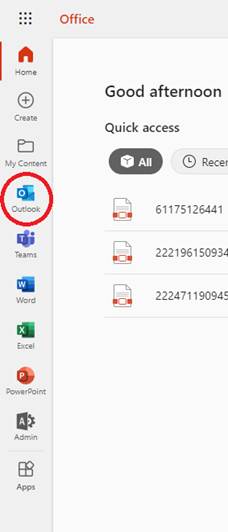
- Navigate to office.com, login, and select outlook on the navigation bar on the left.
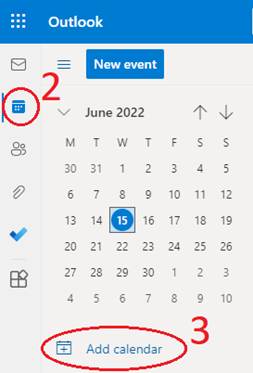
- Select the calendar icon on the navigation bar on the left.
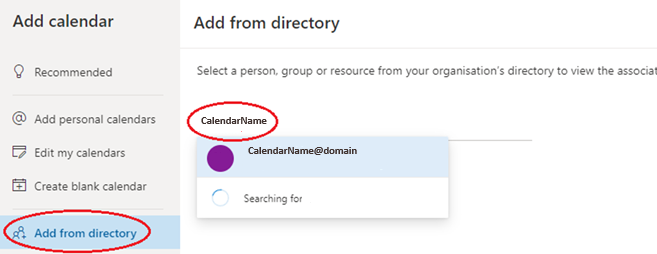
- Choose “Add calendar”
- Select “Add from directory”, then type in the name of calendar you wish to add.
Was this article helpful?
That’s Great!
Thank you for your feedback
Sorry! We couldn't be helpful
Thank you for your feedback
Feedback sent
We appreciate your effort and will try to fix the article