This guide will quickly guide you through accessing a Microsoft Teams group when you have been given access via an email address outside of the organisation – for example, a personal email address. Note that this guide also works for desktop versions as well as online versions of Microsoft Teams.
Before following the guide below, make sure you have been given access to the Team by checking with the owner of Team. This could be the person you are in contact with at the organisation.
Guide
Step 1 - Login to Microsoft Teams using your personal email address. This may require you to create a Microsoft account, which you can do by following this link or by searching “create Microsoft account” on your search engine of choice.
Step 2 - After logging in, it may ask you which “Teams org” you wish to use. Make sure you select the one containing the organisation’s name from the drop-down menu. Then click continue.
If these options do not appear, follow the next step. Otherwise, you can skip to Step 4. 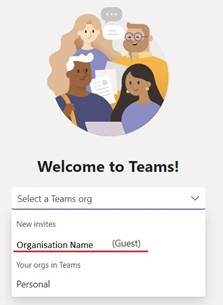
Step 3 - If your Microsoft Teams looks similar to below, select the profile icon in the top right, and choose the organisation name. This will send you to the guest access for that organisation.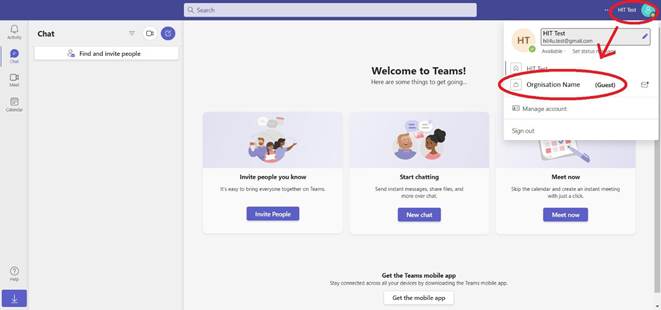
Step 4 - To access the Team, you can select the “Teams” page using the button on the navigation bar on the left. This will then allow you to choose the Team you wish to view. To access any files, select a Team channel (e.g., “General”), then select the “Files” tab at the top. 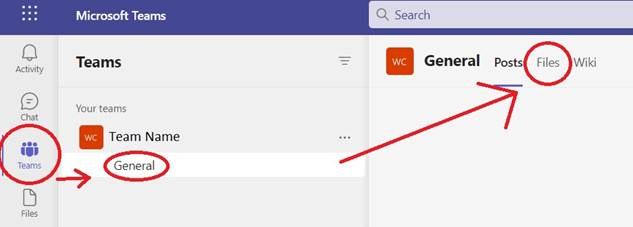
Was this article helpful?
That’s Great!
Thank you for your feedback
Sorry! We couldn't be helpful
Thank you for your feedback
Feedback sent
We appreciate your effort and will try to fix the article