This guide takes you through the process of configuring TeamViewer to only provide screen sharing capabilities instead of full remote access.
This is useful in cases where you do not need the other person to be able to control your device.
For example, sharing your screen with an individual who may be visually impaired while in a meeting space or classroom, that may need a more zoomed in view.
Guide (Windows)
- Open TeamViewer and navigate to the Settings page using the cog icon in the top-right.
- Hover over the small grey navigation bar to bring up further options. Select Advanced settings.
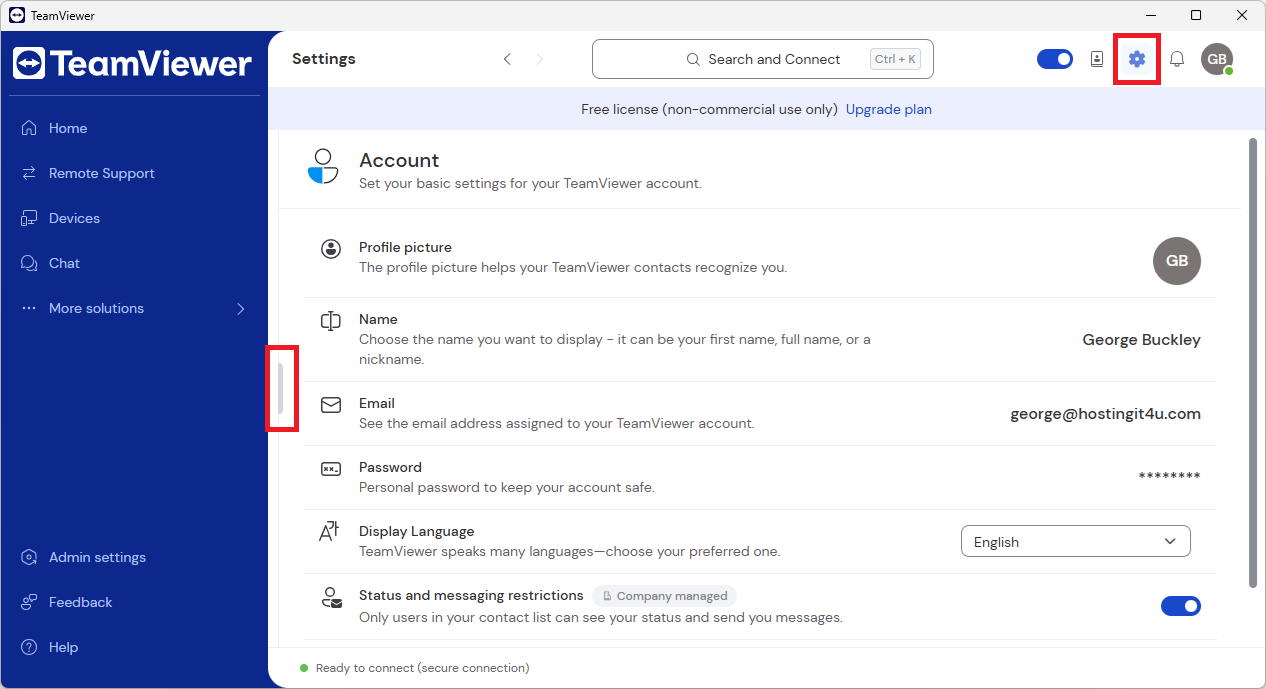
- Then select Open advanced settings.
- Under Access control, select one of the following options:
- View and show - this will only allow screen sharing, but you will have to manually confirm the TeamViewer connection for each new session.
- Custom settings - this allows you to manually select how TeamViewer permits connections. You must click the Configure button to allow you to select these options.
For screen sharing only, without needing to confirm each new session, set everything to Denied, except for Connect and view my screen, which should be Allowed.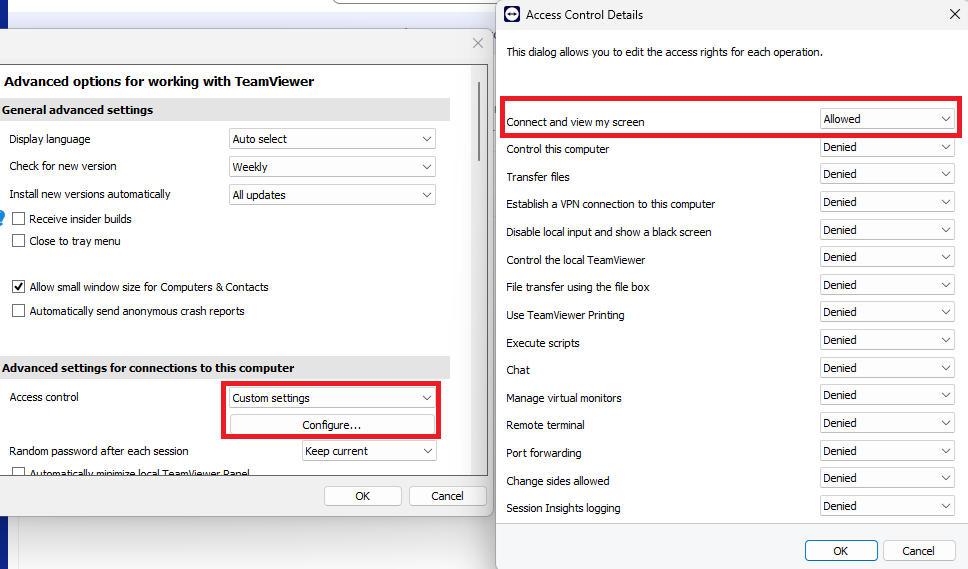
- View and show - this will only allow screen sharing, but you will have to manually confirm the TeamViewer connection for each new session.
Optional
TeamViewer requires the viewer to enter a password each time they attempt to connect.
This can be stopped: while remaining in the Advanced settings (steps 1-3 above), select Keep current, as the option for Random password after each session setting.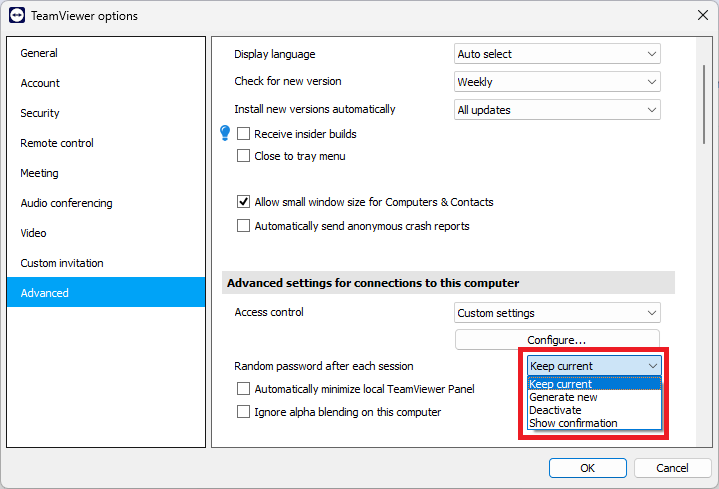
Was this article helpful?
That’s Great!
Thank you for your feedback
Sorry! We couldn't be helpful
Thank you for your feedback
Feedback sent
We appreciate your effort and will try to fix the article