If are looking to add a new outlook account this article may be better for you:
How to add an email address to Outlook
An outlook profile can be useful if you want to separate email addresses for whatever reason.
For example: separating your work from personal emails.
If you wish to make a new outlook profile follow the steps below.
Step 1 - Close Outlook. Then open the control Panel. This can be done by searching “Control” on the start menu. (Click the Windows logo bottom left of the screen – then start to type).
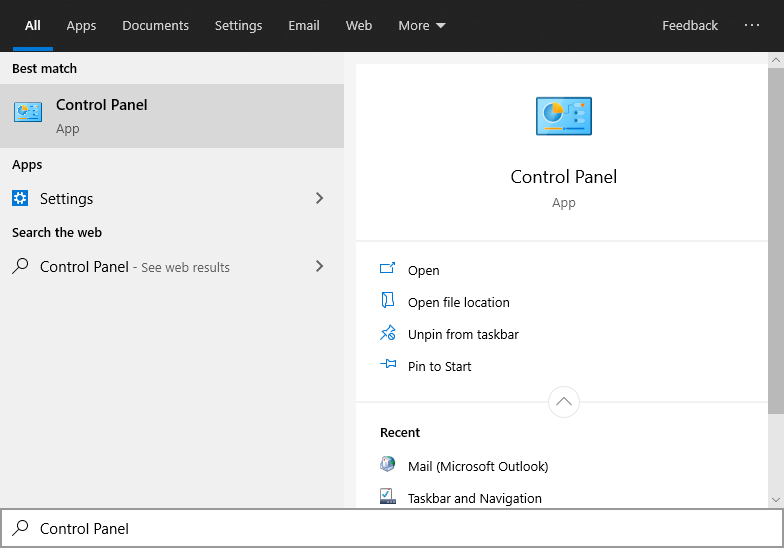
Step 2 - Now in the search bar on the Control Panel, search “mail”. It should return the option: “Mail (Microsoft Outlook)”. Click this.

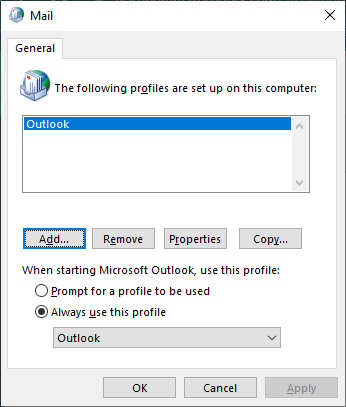
Step 3 - Now on the new window that appears, you need to click “Show Profiles…”. This should bring up a list of email profiles. Like the image below.
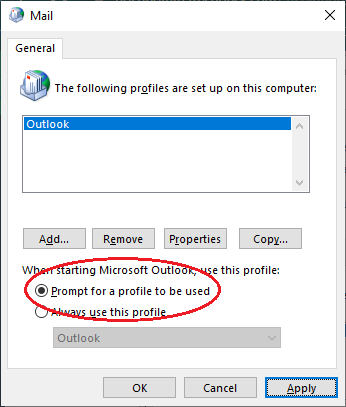
Step 4 - On this window, make sure to select the option “Prompt for a profile to be used” at the bottom section. This means when you open Outlook it will ask you what profile you wish to use.
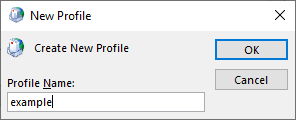
Step 5 - From here select the “Add…” button and follow the steps to login. Name the profile whatever you like. We recommend setting “Your Name” as the email address you wish to use.
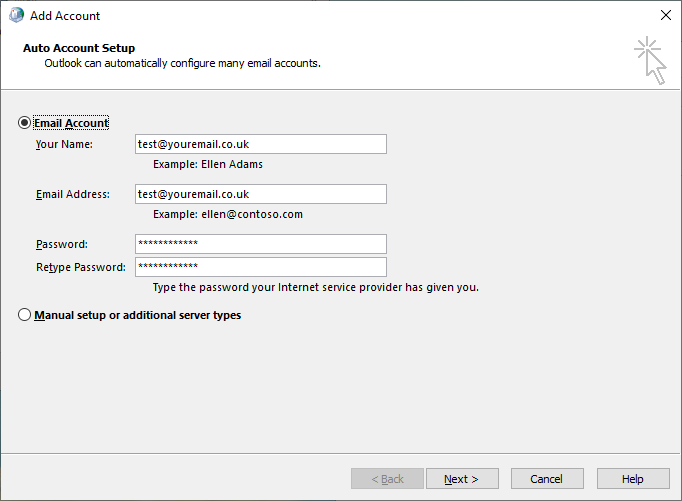
Step 6 - After a few moments, it is possible that another pop-up will appear, asking for your login details again, make sure you check the box to remember your details.
Step 7 – Once all the details have been typed in, you should be able to click finish and start Outlook again.
Was this article helpful?
That’s Great!
Thank you for your feedback
Sorry! We couldn't be helpful
Thank you for your feedback
Feedback sent
We appreciate your effort and will try to fix the article