When swapping to a new mobile device, it's important that you swap over your multi-factor authentication apps.
The below guide takes you through the steps for an Office 365 account, using the Microsoft Authenticator app.
This guide can also be completed on a mobile device.
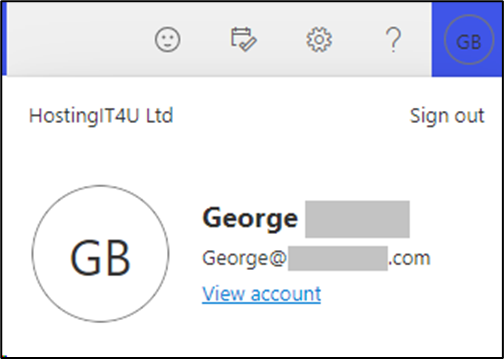
- Log into office.com and click on your profile icon/picture in the top right of the browser window.
- Select “View account”. If you’re asked to complete a short survey on the next window that appears, it can be skipped.
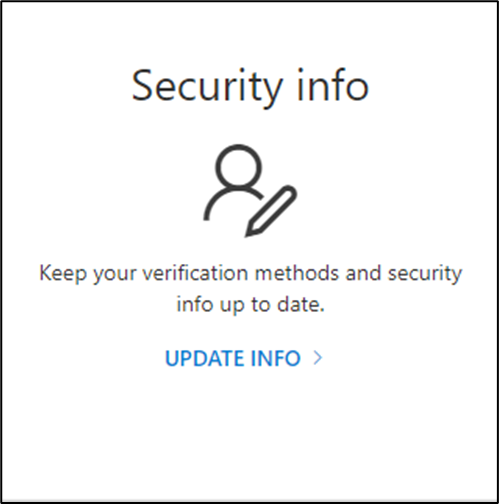
- Look for the box labelled “Security info” and select “UPDATE INFO”.
 You will be asked to sign in again - so prepare your old device if you’re asked for MFA!
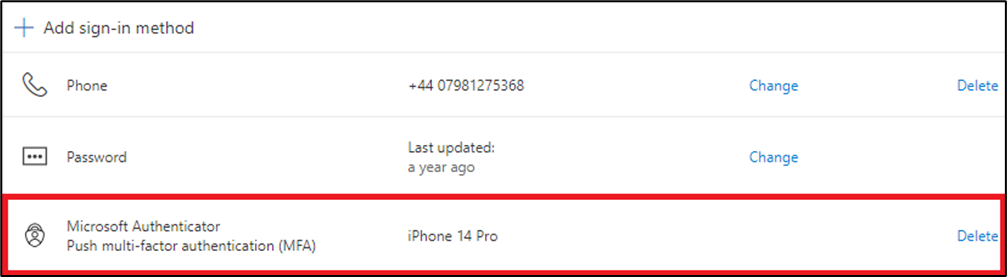
 - In the list of sign-in methods, search for one labelled as “Microsoft Authenticator”. Next to this option in the list, click the “Delete” button. This removes the account your signed in with from your MS Authenticator app.
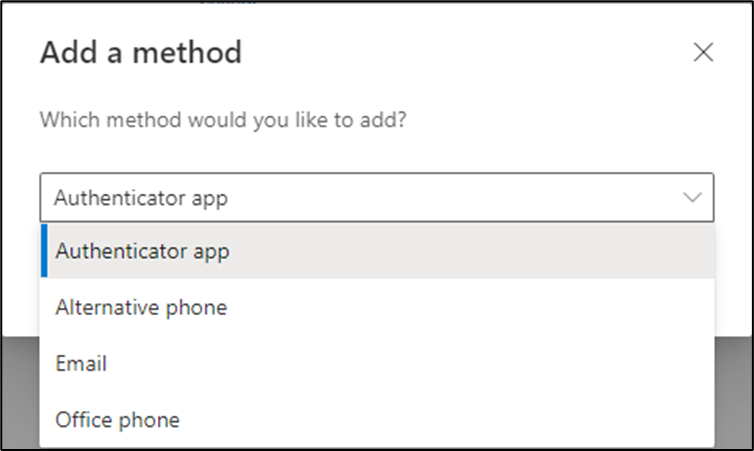
- After confirming there are no MS Authenticator in the list of sign-in methods, select “Add sign-in method”, then from the drop-down menu, select “Authenticator app”.

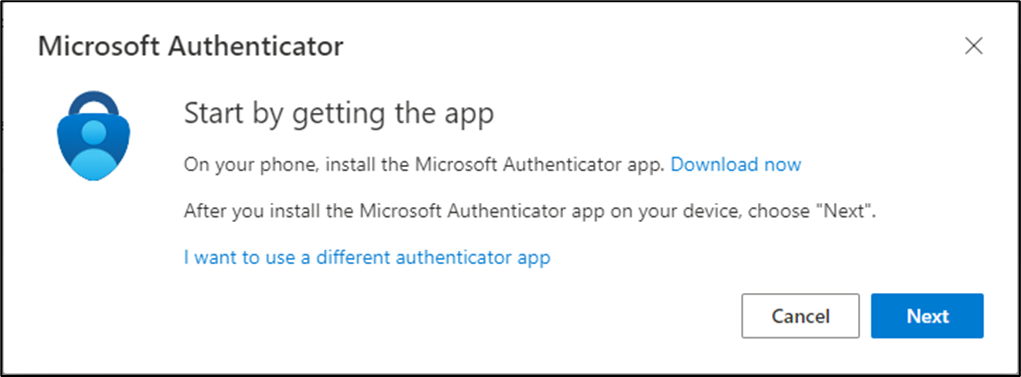
- Click “Add” and then follow through the steps on screen for your new mobile device. So the first step would be to install the app on your new device.
Was this article helpful?
That’s Great!
Thank you for your feedback
Sorry! We couldn't be helpful
Thank you for your feedback
Feedback sent
We appreciate your effort and will try to fix the article