To preface, please read the instructions given on your computer screen as well if you’re stuck.
- The below screen should appear on your computer:
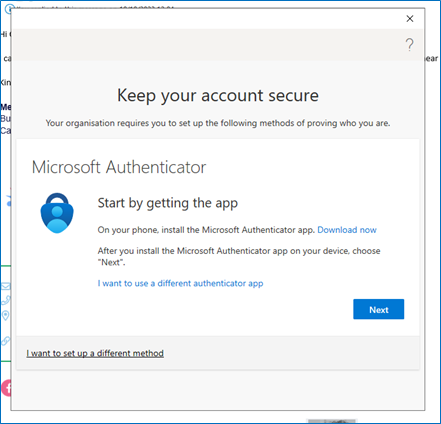
You will need to download the Microsoft Authenticator app on your phone. Once you have done this then press next on the screen. - Once you have done this the next screen will appear:
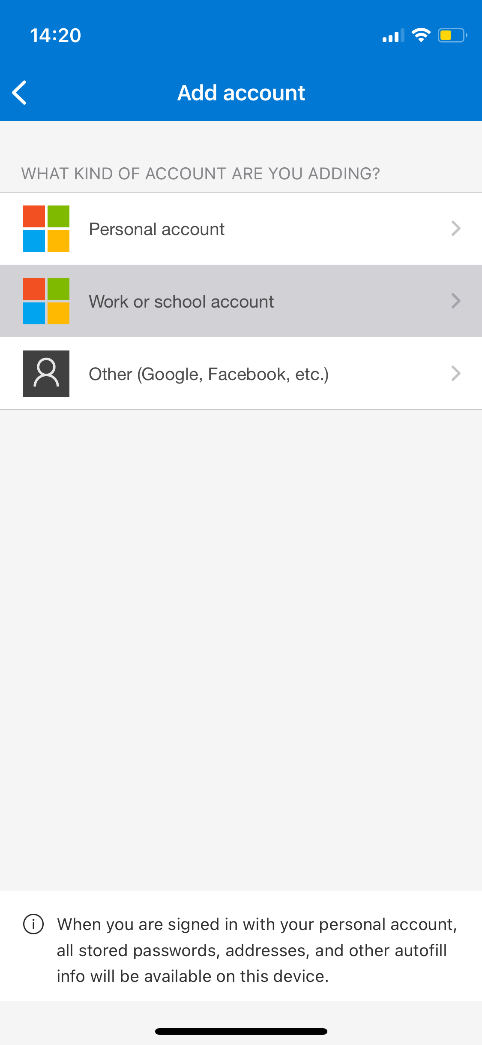
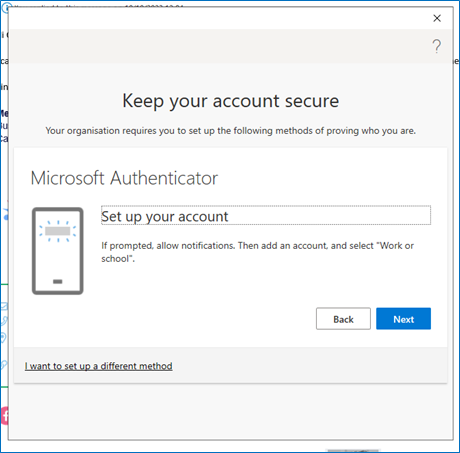
At this point, on your phone, select “Work or school account”.
If you cannot see this option, you may have to tap on the plus symbol in the top right of the app.
On this screen you need to click next. - Within the app on your phone you will see the option to ‘scan QR code’ click this and then scan the QR code that shows on your computer screen (not the one below).
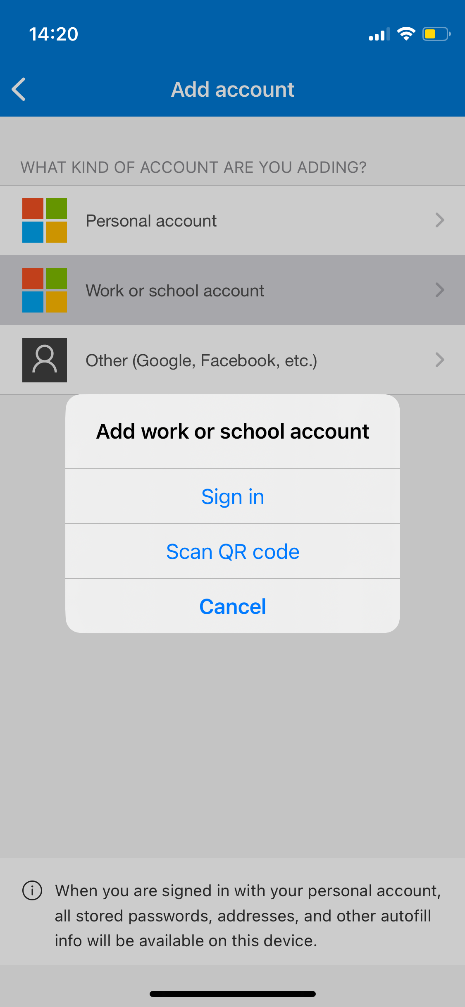
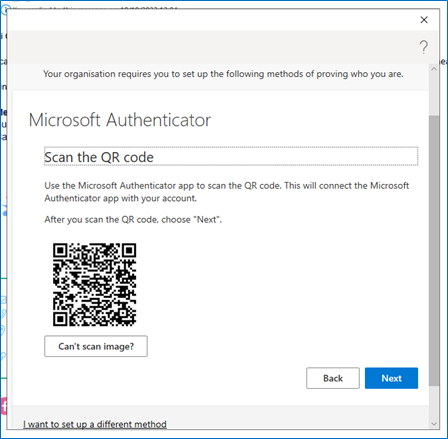
Once you have done this click next. - You will then see the below screen, your phone app will then ask for a number to be entered, it will be the one that is showing on your computer screen (not the one below)
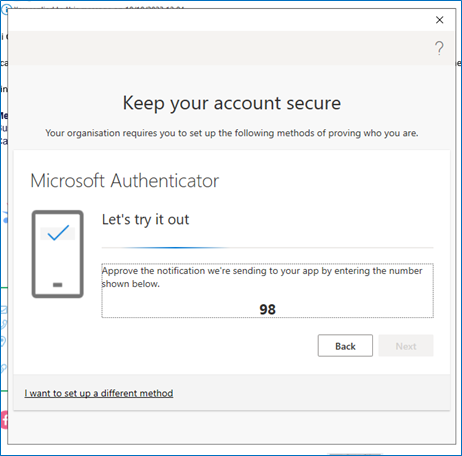
Once you have done this your phone may ask you to enter your passcode (which is your usual PIN or passcode you use to unlock your phone – it may even suggest enabling Face or Touch ID)
Your computer may prompt you irregularly to use two-factor authentication, which will require you to input a number into your phone as you have just done above. Selecting ‘Yes’ when asked if you want to stay signed in will make this prompt appear less regularly and sometimes not until the device is inactive for a long time.
This is often a requirement, so please it's best to not ignore the reminders to do this, as you may then be locked out of your system.
Was this article helpful?
That’s Great!
Thank you for your feedback
Sorry! We couldn't be helpful
Thank you for your feedback
Feedback sent
We appreciate your effort and will try to fix the article